How to Reset a Shark Robot Vacuum in 5 Easy Steps
To reset your Shark Robot Vacuum in 5 easy steps, start by fully charging it and placing it on a flat surface. This ensures a smooth reset process without interruptions.
Next, open the Shark Clean app on your phone, connect to your vacuum, and select the factory reset option. It’s pretty straightforward and helps clear any old settings or glitches that might be causing trouble.
If you’re not into using the app, no worries! Just hold down the power button manually for about 10 seconds until the vacuum restarts.
This method works just as well to erase previous configurations.
After the reset, reconnect your vacuum to the app and set it up again like new. Keep reading to find useful tips for troubleshooting and optimizing your Shark Robot Vacuum’s performance.
Key Takeaways
- Fully charge the vacuum, turn it off, and place it on a flat surface before starting the reset.
- Open the Shark Clean app, connect to Wi-Fi, and select your robot vacuum.
- In the app, access device settings and choose “restore factory settings” to begin the reset.
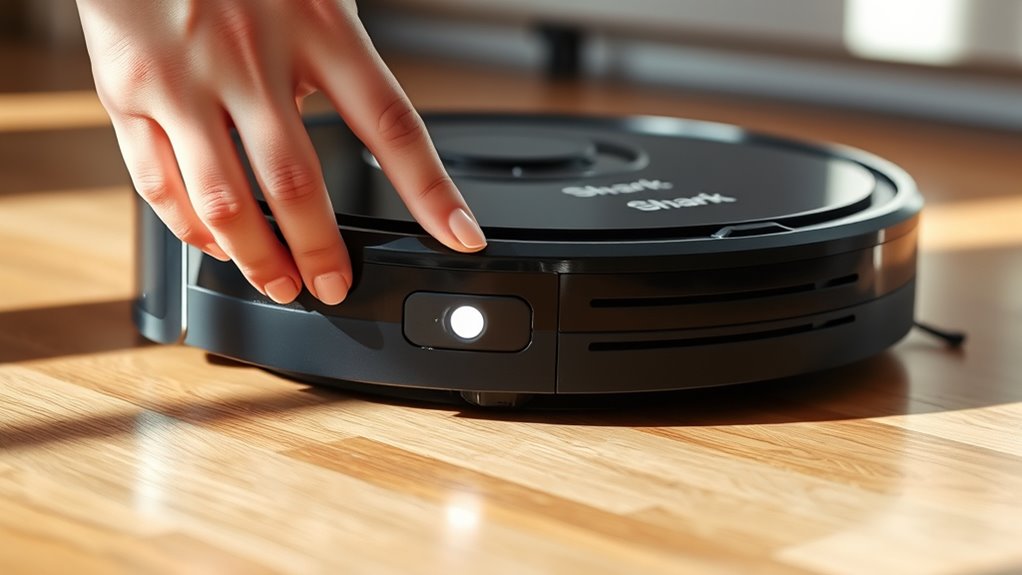
- Alternatively, press and hold the vacuum’s power button for 10 seconds until lights flash, then release.
- After reset, reconnect the vacuum to the app to reconfigure and resume cleaning cycles.
Charge and Prepare Your Shark Robot Vacuum for Reset

Before you reset your Shark Robot Vacuum, make sure it’s fully charged or has enough battery life to complete the process. To prepare, first disconnect the vacuum from any charging dock or power source.
Place it on a flat, stable surface to prevent accidental movement during the reset. This step guarantees the device won’t shift or turn on unexpectedly.
Next, check the vacuum’s sensors and clean off any debris that might interfere with the reset. Keeping the sensors clear helps the reset process run smoothly and avoids future navigation issues.
You’ll also want to turn off the vacuum before starting the reset. Preparing your mobile device is important too—make sure it’s connected to Wi-Fi and the Shark app is open and ready.
Perform a Factory Reset Using the Shark Clean App

Once you’ve prepared your Shark Robot Vacuum, open the Shark Clean app and connect your device to the vacuum. In the app, go to the device settings and select the specific robot vacuum you want to reset.
Prepare your Shark Robot Vacuum, open the Shark Clean app, and select your device in settings to begin resetting.
Look for the option labeled “restore factory settings” to begin the factory reset process. Tap this option, and when prompted, confirm that you want to proceed with the reset.
The app will then erase all data and return your vacuum to its default settings. This factory reset can help resolve persistent issues or prepare the device for a fresh setup.
After the reset is complete, reconnect your Shark Robot Vacuum to the Shark Clean app and configure it again for regular use. Using the app to perform a factory reset is straightforward and assures your vacuum is restored without any leftover data or settings.
This method makes resetting your device quick and convenient.
Manually Reset the Shark Ion Robot Vacuum

If your Shark Ion Robot Vacuum is acting up, you can manually reset it to clear minor software glitches. To perform a manual reset, first turn your Shark Ion Robot Vacuum upside down and find the power button.
Press and hold this button for at least 10 seconds until the vacuum’s lights flash or it powers off. Once this happens, release the power button and wait about 15 seconds for the device to restart automatically.
This process helps restore the vacuum to its factory settings, resolving small software issues without needing the app. Before you start, make sure the robot’s battery is sufficiently charged to prevent any interruptions during the reset.
Manual reset is a simple, effective way to get your Shark Ion Robot Vacuum back to working smoothly without a full factory reset through the Shark Clean App.
What Happens During and After the Reset
After you perform a manual reset on your Shark Ion Robot Vacuum, the device wipes all stored data, including maps, schedules, and Wi-Fi settings. This reset restores the vacuum to its factory settings, erasing any custom preferences you’ve set.
The robot then restarts, and you’ll need to reconnect it to your mobile app to regain control. During this time, cleaning cycles will pause until you complete the setup again.
Here’s a quick overview of what happens during and after the reset:
| Stage | What Happens | Your Action Needed |
|---|---|---|
| Reset Initiated | Data wiped (maps, schedules) | None |
| Factory Reset | Device reverts to default state | None |
| Restart | Robot powers back on | Reconnect to mobile app |
| Ready to Use | Behaves like a new device | Set preferences and start cleaning |
Make sure your vacuum is connected again to optimize performance after the reset.
Troubleshooting Shark Robot Vacuum Problems
Why isn’t your Shark Robot Vacuum working properly? Troubleshooting often starts with a reset, especially if you’re facing software glitches, incomplete cleaning cycles, or sudden shut-offs. Performing a reset clears these glitches and restores your vacuum’s responsiveness.
The best way to do this is through the Shark Clean mobile app, where you can initiate a factory reset quickly and effectively.
Before resetting, make sure your robot’s sensors are clean and the battery is fully charged. These simple checks can prevent many common issues.
If problems persist after the reset, check for software updates to keep your vacuum running smoothly. When all else fails, don’t hesitate to contact customer support for expert help.
Frequently Asked Questions
How Do I Do a Hard Reset on My Shark Robot Vacuum?
You’ll press and hold the power button for 10 seconds while the vacuum’s upside down. Then, release it and wait 15 seconds for the vacuum to restart.
Make sure the battery’s charged before you start. That way, you won’t run into any issues during the reset.
How to Hard Reset a Robot Vacuum?
To hard reset your robot vacuum, turn it upside down and press the power button. Hold it down for about 10 seconds.
After that, wait for 15 seconds before turning it back on. This clears minor glitches without losing your settings. Pretty simple, right?
Does the Shark Vacuum Have a Reset Button?
No, the Shark vacuum doesn’t have a dedicated reset button. You’ll need to use the Shark Clean app for a factory reset or perform a manual power reset by holding the power button or turning the robot upside down.
It might sound a bit tricky at first, but once you get the hang of it, it’s pretty straightforward. Just remember, no physical reset button on the device itself!
How Do You Soft Reset a Shark Robot Vacuum?
Think of your Shark vacuum as a sleeping giant—press and hold its power button for 10 seconds to lull it into rest. Then, wait 15 seconds for it to wake refreshed and ready to clean anew.
It’s like giving it a little nap to reset and get back to work with full energy. Easy, right?
Conclusion
Resetting your Shark robot vacuum can quickly resolve glitches and improve performance. For example, Sarah noticed her vacuum wasn’t charging properly until she performed a factory reset via the Shark Clean app. Afterward, it worked like new.
By following these simple steps, you’ll keep your device running smoothly and extend its lifespan. If issues persist, don’t hesitate to troubleshoot further or contact Shark support for help.
Regularly resetting your Shark robot vacuum helps maintain optimal cleaning efficiency and prevents common problems. It’s a straightforward way to refresh your vacuum’s system without any hassle. So, whenever your Shark vacuum acts up, remember that a quick reset might be all it needs to get back on track and keep your home spotless.