
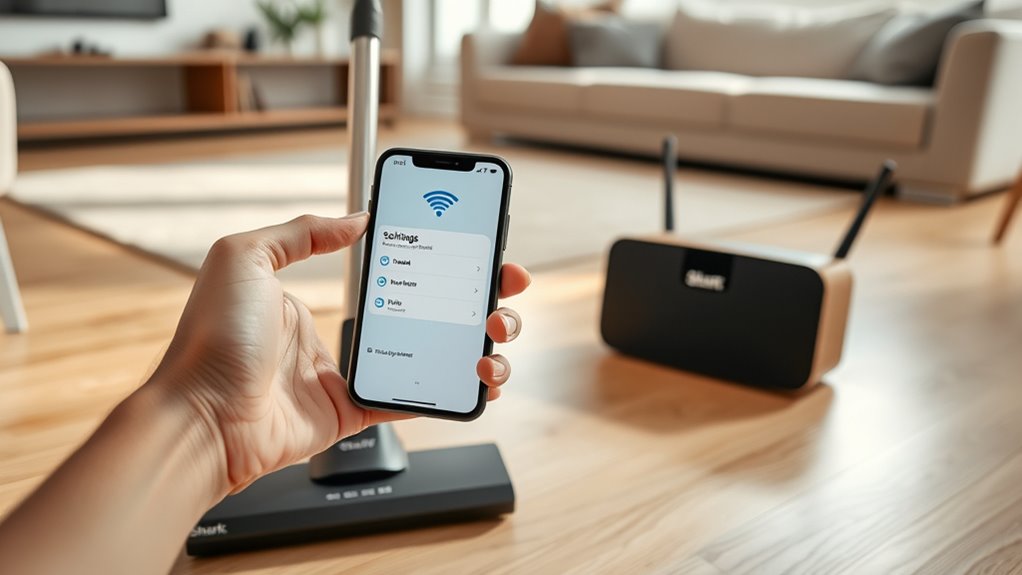
How to Connect Shark Vacuum to WiFi in 3 Easy Steps
To connect your Shark vacuum to WiFi, start by downloading the SharkClean app and creating an account. This app is your key to unlocking all the smart features of your Shark vacuum, making cleaning easier and more efficient.
Next, power on your vacuum and put it in pairing mode by holding the clean and dock buttons together.
Then, open the app, tap “Join,” and select your 2.4 GHz Wi-Fi network to connect.
Once linked, you can control and schedule cleanings remotely, giving you more flexibility and convenience.
If you want to guarantee a smooth setup and get the most from your vacuum, there’s more helpful info to explore.
Key Takeaways
- Power on the Shark vacuum and enter pairing mode by holding the clean and dock buttons simultaneously.
- Make sure your smartphone is connected to the 2.4 GHz Wi-Fi network you want to use.
- Open the SharkClean app, tap “Join,” and select your Wi-Fi network to start the connection.
- Then, just follow the app’s on-screen instructions to complete the Wi-Fi setup and confirm the vacuum’s connection.
- Finally, check that the vacuum is connected in the app. This lets you use remote control and scheduling features with ease.
Get Your Shark Vacuum and App Ready
Before you can connect your Shark vacuum to WiFi, make sure you download the SharkClean App from the Apple App Store or Google Play Store. Once you have the app, open it and create a new account by entering your email address and setting a password.
Download the SharkClean App and create an account by entering your email and setting a password.
Don’t forget to check your inbox for a verification email; you’ll need to click the link to activate your account. Next, confirm your smartphone is connected to the Wi-Fi network you want your Shark vacuum to use.
This step is essential because the vacuum will connect to the same network through your phone. When you launch the app, follow its instructions to verify the specific Shark vacuum model you own before moving forward.
Taking these steps will get both your Shark vacuum and the app ready, setting you up for a smooth connection process in the next phase.
Connect Your Shark Vacuum to WiFi
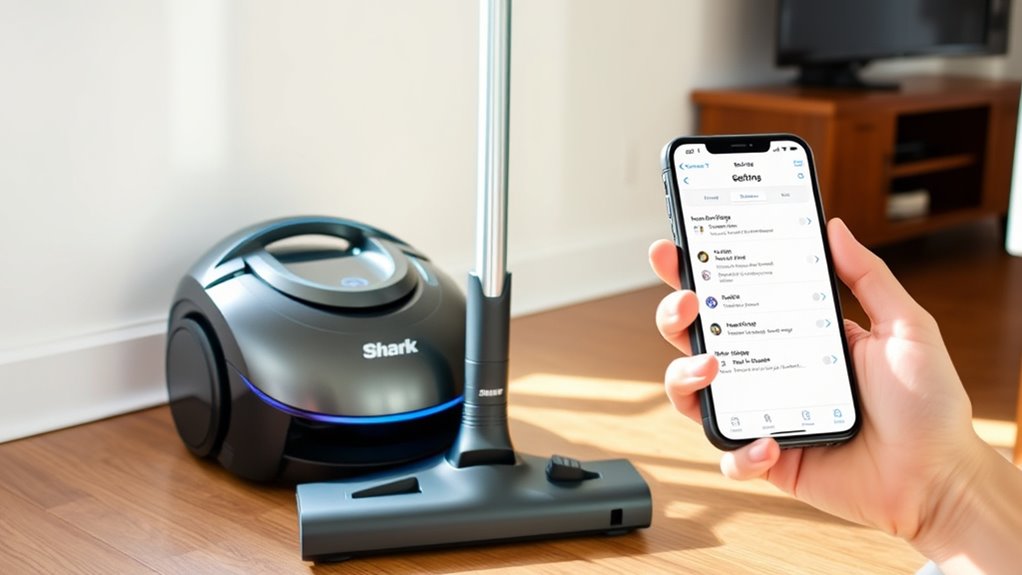
Once your Shark vacuum is powered on and in pairing mode, you can open the SharkClean app and tap “Join” to start connecting your robot to WiFi. To put your vacuum in pairing mode, press and hold the clean and dock buttons simultaneously until it signals readiness.
In the app, select the WiFi network your smartphone is connected to—make sure it’s a 2.4 GHz network, since many Shark vacuums don’t support 5 GHz. After selecting the compatible network, the app will guide you through the connection process. Just follow the prompts carefully to complete setup.
Once connected, your Shark vacuum will be linked to your WiFi, enabling remote features like control, scheduling, and monitoring. If the connection fails, double-check your network frequency and make sure your phone is connected to the right network.
Connecting your Shark vacuum to WiFi is pretty straightforward and sets you up for seamless smart cleaning.
Control and Schedule Your Shark Vacuum Using SharkClean App
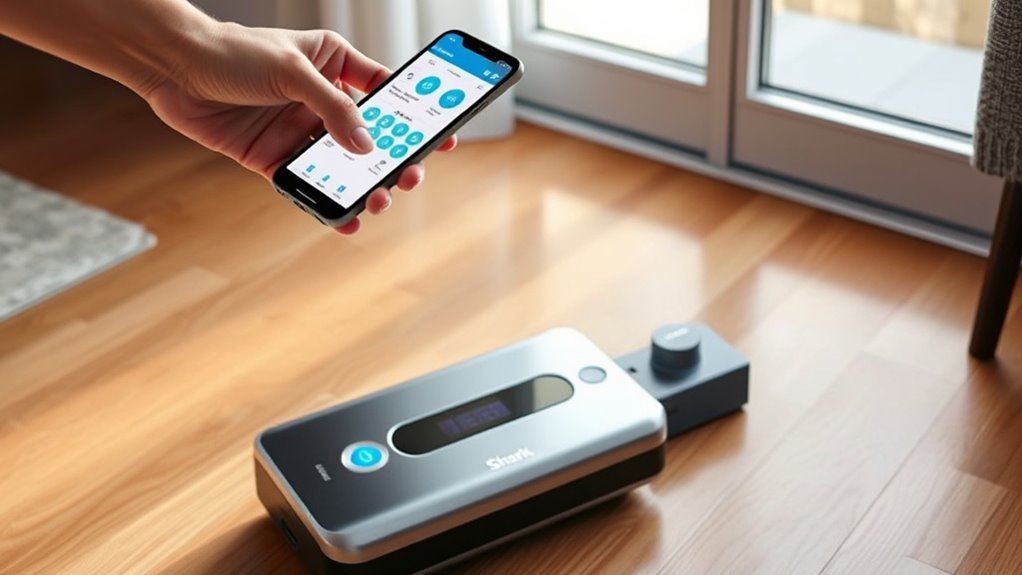
The SharkClean app lets you easily control your vacuum and set cleaning schedules right from your smartphone. To get started, open the app and make sure your Shark vacuum is powered on and in pairing mode by pressing and holding both the clean and dock buttons at the same time.
Control your Shark vacuum and schedule cleanings easily from your smartphone with simple pairing steps.
Next, tap “Join” to begin connecting, then choose your home Wi-Fi network from the list in the app. Make sure your phone is connected to that same network too — that way, everything runs smoothly.
Follow the on-screen prompts to complete pairing. This might include verifying your Wi-Fi connection and checking your vacuum’s status.
Once connected, you can remotely control your vacuum, schedule cleanings, and customize settings to fit your needs. It really makes managing your Shark vacuum convenient and efficient, so you can keep your home clean with just a few taps.
Frequently Asked Questions
How Do I Get My Shark Vacuum to Connect to Wi-Fi?
You’ll need to power on your Shark vacuum, then press and hold the clean and dock buttons together to enter pairing mode.
Next, use the SharkClean App to join your Wi-Fi network. Just follow the prompts to finish, and you’ll be all set!
How Do I Put My Shark Vacuum in Pairing Mode?
You put your Shark vacuum in pairing mode by pressing and holding the clean and dock buttons together until the lights flash. If your model has a dedicated pairing button, hold that instead.
Just make sure it’s powered on first. That way, the vacuum will be ready to connect without any issues.
How Do I Connect My Vacuum to My Wi-Fi?
Connecting your vacuum to Wi-Fi is like syncing your phone to Bluetooth speakers—simple yet essential.
Just open the SharkClean app, select your vacuum, pick your network, enter the password, and wait for confirmation. Then, you’re all set to start remote control. Easy, right?
Why Is the Wi-Fi Not Connecting?
Your Wi-Fi might not connect because your vacuum and router aren’t on the same 2.4 GHz band. The signal could be weak, or maybe your router just needs a quick restart.
Also, it’s a good idea to check for firmware updates. Those updates can often fix connectivity issues and get everything running smoothly again.
Conclusion
Now that you’ve connected your Shark vacuum to WiFi, you hold the remote control to a cleaner home right in your hands. With the SharkClean app, scheduling and managing your vacuum is as easy as pie, saving you time and effort.
Just follow these simple steps, and your smart vacuum will do the heavy lifting while you relax.
Embrace this seamless connection and let technology sweep your worries away! Connecting your Shark vacuum to WiFi opens up a world of convenience. You can control your vacuum from anywhere, set cleaning schedules, and even receive maintenance alerts right on your phone.
So go ahead, enjoy the benefits of a smart home and let your Shark vacuum keep your floors spotless without lifting a finger!


