
How to Reset Tineco Vacuum in 7 Easy Steps
To reset your Tineco vacuum in 7 easy steps, start by turning it off and unplugging it or removing the battery. This simple step helps ensure your safety and prepares the vacuum for a proper reset.
Next, check and clear the filters, brush rolls, and dustbins from any debris. Cleaning these parts can improve performance and prevent issues during the reset process.
After that, press and hold the power button until the vacuum shuts down completely. Then, wait for about 30 seconds to let the system fully reset.
When you’re ready, power it back on by holding the button again.
If you have the S5 Pro model, try holding the Wi-Fi and main buttons at the same time for a reset.
Once done, reassemble all the parts securely.
Finally, test the vacuum to make sure everything is working properly. If you run into any problems, don’t worry—troubleshooting tips are just a step away! Keep following for more detailed advice.
Key Takeaways
- Turn off and unplug the vacuum, then remove the battery if possible before starting the reset. This helps make sure everything is completely powered down.
- Press and hold the power button until the vacuum powers off completely, then wait 30-60 seconds. Giving it a little pause is key before moving on.
- For S5 Pro models, hold both the Wi-Fi button and main switch simultaneously for 10 seconds to factory reset. This step is specific to that model, so keep an eye out if you have it.
- Reassemble all parts securely, ensuring filters and brush rolls are clean and properly seated. Clean parts really help the vacuum work like new again.
- Power on the vacuum, listen for normal startup sounds, and run a short cleaning cycle to confirm reset success. If it sounds and runs smoothly, you’re good to go!
Check Vacuum Condition Before Reset

Before you reset your Tineco vacuum, why not take a moment to check its condition? First, make sure the vacuum is turned off and unplugged. Then, inspect the filters, brush rolls, and air pathways for any clogs or debris that might be blocking airflow.
These blockages can impact performance and trigger error indicators on the display screen. Also, check the water tank or dustbin to ensure it’s emptied and properly seated. An overfilled water tank often causes error alerts.
If your vacuum runs on battery, verify the battery is connected securely and has enough charge. Paying attention to these details helps you identify the root of any issues before hitting reset, saving time and preventing unnecessary troubleshooting.
Power Off and Disconnect Your Tineco Vacuum Safely

First, locate the power button on your Tineco vacuum and press it firmly until the device turns off.
Next, unplug the vacuum from its charging station or power outlet to make certain it’s fully disconnected.
Taking these steps helps you safely prepare the vacuum for reset or maintenance. Easy, right? Just a couple of simple moves and you’re all set!
Locate Power Button
Where can you find the power button on your Tineco vacuum? Typically, it’s located on the handle or main display screen.
Before you start the reset process, make sure your vacuum is off by pressing the power button until it powers down completely. Also, disconnect the vacuum from any power source or charging dock.
For cordless models, remove the battery if possible. Always handle the power button with dry hands to avoid electrical hazards.
| Step | Action |
|---|---|
| 1 | Locate power button on handle |
| 2 | Press and hold to power off |
| 3 | Disconnect from power source |
| 4 | Remove battery (cordless) |
| 5 | Make certain hands are dry |
Following these steps will prepare your vacuum for a safe reset. Easy, right? Just take it one step at a time!
Hold To Power Off
After locating the power button on your Tineco vacuum, press and hold it until the device powers off completely. This guarantees the vacuum is fully shut down before you proceed.
Once off, wait at least 30 seconds to let the device settle. If you have a cordless model, remove the battery if possible to disconnect power entirely.
Before attempting any reset, always make certain the vacuum is powered down and unplugged from its charging source or wall outlet. This step is vital for your safety and the device’s longevity.
Holding the power button to power off properly prepares your Tineco vacuum for a smooth reset. It helps prevent any potential damage or errors during the process.
Unplug From Power Source
Before unplugging your Tineco vacuum, make sure you’ve powered it off by pressing the power button. This step guarantees safety and prevents any accidental operation.
Once it’s off, carefully unplug the power cord from the electrical outlet. Proper disconnection is essential to avoid electrical hazards.
If your vacuum has a removable battery, follow the manufacturer’s instructions to detach it safely. After unplugging, wait at least 30 seconds to let any residual electrical charge dissipate.
Never attempt to reset or restart your vacuum while it’s still connected to the power source, as this can cause damage or injury. Following these steps will help you safely unplug and disconnect your Tineco vacuum before proceeding with the reset.
Reset Your Vacuum Using the Power Button
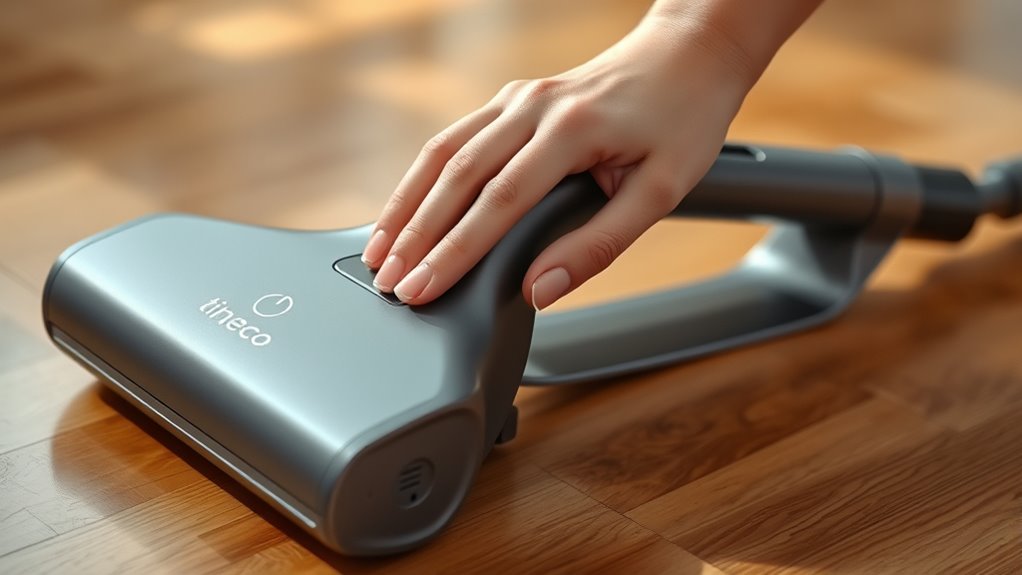
First, find the power button on your Tineco vacuum‘s handle or display screen. Press and hold it until the vacuum powers off completely.
After waiting a short moment, hold the button again to turn it back on and complete the reset. Easy, right? Just give it a try!
Locate Power Button
Where exactly can you find the power button on your Tineco vacuum? Typically, the power button is located on the handle or near the display screen area. This placement makes it easy to access during use.
To reset your vacuum using the power button, start by pressing and holding it until the device powers off completely. This step initiates the reset process.
After the vacuum turns off, wait 30 to 60 seconds to allow its internal components to fully reset. Then, press and hold the power button again until the vacuum powers back on. Once it’s on, go ahead and release the button.
That confirms a successful reset, and you can now set your preferences and resume cleaning. Knowing where the power button is makes resetting your vacuum quick and easy.
Hold To Restart
Once you’ve located the power button on your Tineco vacuum, you’re ready to use it to restart the device. To reset your vacuum, press and hold the power button until the vacuum turns off completely. This guarantees the device powers down fully.
Next, wait for 30 to 60 seconds with the vacuum off, allowing the internal system to reset properly. After the pause, press and hold the power button again to turn the vacuum back on. Once it powers up, release the button, set your cleaning preferences, and continue using your reset vacuum.
Using the power button to perform this hold-to-restart method is a quick and effective way to refresh your Tineco vacuum and resolve minor issues without hassle. It’s simple, and it works!
Clear Debris to Support Reset Process
Why does clearing debris play an essential role in resetting your Tineco vacuum? Debris buildup in filters, brushes, and air pathways can create blockages that interfere with the reset process. When these areas are clogged, the vacuum’s sensors and internal components might not function properly, preventing a successful reset.
To support the reset, start by thoroughly inspecting and cleaning the filters and air pathways. Removing dirt, hair, and tangled debris from the brush roll eliminates technical glitches that could stop the vacuum from restarting. Also, make sure the dustbin or water tank is emptied completely, so the device recognizes it’s ready to operate.
Cleaning clogged air inlets restores the best airflow, which is essential for sensor performance during a reset. By keeping these parts clear, you guarantee that your Tineco vacuum resets smoothly and performs efficiently afterward. It’s a simple step that makes a big difference!
How to Factory Reset the S5 Pro Model
If you’re experiencing persistent issues with your Tineco S5 Pro, performing a factory reset can help restore its original settings. Before starting, make sure your vacuum is powered on.
To initiate the factory reset, press and hold both the Wi-Fi button and the main switch simultaneously for about 10 seconds. You’ll know the reset is successful when the LCD screen or indicator lights briefly flash or turn off and on again as the device restarts.
Press and hold the Wi-Fi button and main switch for 10 seconds until the screen flashes to reset.
This process clears all customized settings and returns your vacuum to its original factory configuration. Use this factory reset only after you’ve tried regular troubleshooting steps without success.
It’s an effective way to resolve stubborn problems that don’t respond to simpler fixes. Remember, a factory reset wipes all personalized settings, so you’ll need to set up your Tineco S5 Pro again after the reset.
This step ensures your vacuum runs smoothly and helps you get back to cleaning efficiently.
Reassemble and Test Your Vacuum After Reset
After completing the reset, you’ll need to carefully reassemble all the vacuum’s parts, such as filters, brushes, and dustbins. Make certain each piece fits securely in place.
Pay close attention to the alignment of components and verify they snap firmly into position. This helps avoid any operational problems later on.
Once everything is reassembled, turn on your Tineco vacuum to test its functionality. Listen for normal startup sounds and watch for indicator lights that confirm proper operation.
Next, run a brief cleaning cycle to check that the vacuum operates smoothly without unusual noises or blinking alerts. If you find that the vacuum doesn’t function correctly after reassembly, double-check all connections.
Make sure every component is installed properly. If issues persist, you may need to repeat the reset process to confirm everything is working as intended.
Taking these steps will help you get your vacuum back to peak performance quickly and efficiently.
Fix Common Reset Issues and Errors
Once you’ve reassembled and tested your vacuum, you might still encounter reset issues or errors. To troubleshoot, first make sure the vacuum is turned off and unplugged or the battery is removed before attempting a restart.
For sensor or software-related reset errors, perform a full power cycle by holding the power button for 10 seconds during shutdown. Also, check for blockages in air channels and filters, as restricted airflow often triggers reset errors.
If your model supports electronic reset options, press and hold specific buttons—like the Wi-Fi or mode button—for several seconds to restore settings. Regularly cleaning filters and ensuring proper assembly prevents recurring issues and keeps your vacuum running smoothly.
Frequently Asked Questions
How to Hard Reset Tineco Vacuum?
To hard reset your Tineco vacuum, start by turning it off. Hold the power button until it shuts down.
Next, unplug the vacuum or remove the battery. Wait for about 30 seconds to let it fully power down.
After that, reconnect the power or reinsert the battery. Then, turn it back on.
If your model has a reset button, go ahead and press it as per the instructions. That should do the trick!
How Do I Reset My Vacuum?
To reset your vacuum, hold the power button until it shuts off. Then, wait 30 to 60 seconds.
After that, press the button again to turn it back on. If that doesn’t work, try a factory reset following your model’s instructions.
Why Does My Tineco Vacuum Shut off After a Few Seconds?
Your Tineco vacuum shuts off like a tired runner pausing for breath because it’s overheating, clogged, or facing power troubles.
You’ll want to check filters, airflow, and battery to keep it running smoothly.
What Are the Common Problems With Tineco Vacuum Mops?
You’ll often face clogged filters, brush blockages, or low battery issues with Tineco vacuum mops. Overheating and sensor glitches can also cause problems, reducing suction or stopping your device unexpectedly during cleaning sessions.
These issues can be pretty frustrating, especially if you’re in the middle of a cleaning job. But the good news is, most of them are pretty easy to fix once you know what to look for.
Conclusion
So, you’ve just performed a “simple” reset on your Tineco vacuum, and it’s ready to suck up more than just dust—maybe your frustration too. Who knew that getting your vacuum back to factory settings could feel like defusing a tiny, noisy bomb?
But now, with everything cleared and reassembled, your vacuum is reborn, ready to attack dirt like a fearless warrior. Ironically, a little reset cleans up more than just your floors!
Resetting your Tineco vacuum isn’t just about fixing problems; it’s about giving your device a fresh start. Once reset, your vacuum runs smoother and more efficiently, making cleaning less of a chore. So next time your vacuum acts up, remember these 7 easy steps to reset it and bring it back to peak performance. A quick reset can save you time and keep your Tineco vacuum working like new!


